
Ever found yourself in a text conversation that desperately needs a GIF, only to realize you can’t find them on your iPhone? It’s like searching for a needle in a haystack, except the haystack is your phone and the needle is a hilarious cat meme. Frustrating, right?
Understanding Gifs on Your iPhone
GIFs add a fun element to conversations on iPhones. Finding the right one during a chat can be challenging.
What Is a Gif?
A GIF, or Graphics Interchange Format, is a digital image format. This format supports both static and animated images. GIFs often feature short loops, making them ideal for expressing emotions or humor. These files are popular for sharing across social media platforms and messaging apps. Users commonly encounter GIFs in pop culture references or funny memes.
How Gifs Are Used on iPhones
iPhones integrate GIFs into messaging apps like iMessage and social media. Users can insert GIFs directly into conversations, adding visual flair to their texts. Many apps offer built-in GIF search features for quick access. The process is seamless; tap the app icon inside the message field to explore available GIFs. Options often include trending GIFs or custom searches by keywords. This functionality makes conversations more dynamic and entertaining.
Locating Your Gifs
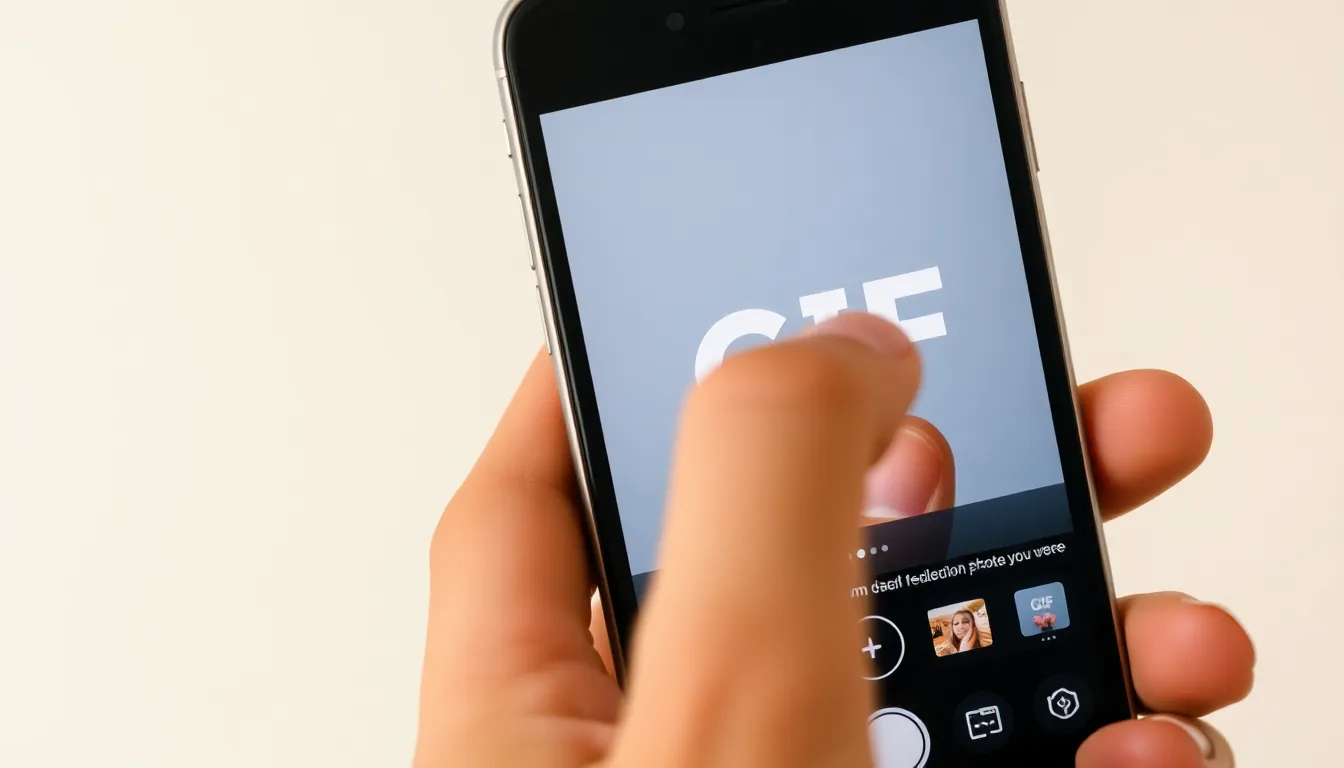
Finding GIFs on an iPhone can be straightforward with the right approach. Start by exploring various apps that store your GIFs and streamline access during conversations.
Using the Photos App
The Photos app stores GIFs saved directly to the device. Open the Photos app and navigate to the Albums tab. In the Media Types section, look for the option labeled “Animated” to view all animated images, including GIFs. Tapping on any GIF plays it, allowing for easy sharing via messaging apps. Users can also search keywords in the search bar to quickly locate specific GIFs if they remember their context.
Accessing Gifs in Messaging Apps
Messaging apps like iMessage and WhatsApp provide seamless access to GIFs. When composing a message, tap the “Apps” icon next to the text field. Then select the GIF option or the appropriate sticker icon. This action opens a GIF library, where users can search using keywords or browse popular GIFs. Selecting a GIF inserts it directly into the conversation, simplifying the process of sharing animated content.
Managing Gifs on Your iPhone
Finding and organizing GIFs on an iPhone involves a few simple steps that can enhance the messaging experience.
Downloading Gifs
To download GIFs, users can select options from various apps like Giphy or Tenor. After finding a desired GIF, tapping the download icon saves it directly to the Photos app. Saved GIFs appear in the “Recent” album, where they can easily be accessed later. Alternatively, tapping the share button allows users to send the GIF directly through messaging apps or social media. This process ensures that GIFs are readily available for future conversations and enhances the user’s digital expression.
Deleting Unwanted Gifs
Deleting unwanted GIFs streamlines the gallery, making it easier to find favorites. Users navigate to the Photos app and locate the GIFs within the “Animated” album. Once identified, tapping the “Select” option allows for multiple GIFs to be chosen simultaneously. After selecting, hitting the trash icon removes them from the device. Regularly maintaining the GIF library helps keep the collection relevant to personal preferences and promotes better organization.
Troubleshooting Gif Issues
Finding GIFs on an iPhone can sometimes present challenges. Users may encounter various issues that affect GIF availability and usability.
Common Problems
GIFs often seem to vanish for different reasons. One issue stems from app glitches, particularly in messaging platforms like iMessage. Sometimes, a weak internet connection hampers GIF loading. Users may also face compatibility problems with specific apps. Another prevalent problem involves confusing storage locations; saved GIFs might not appear where expected. Over time, a cluttered Photos app may make it hard to locate saved GIFs quickly.
Solutions to Fix Gif Disappearance
Several strategies exist to resolve GIF issues on iPhones. First, restarting the iPhone usually clears temporary app glitches. If the problem persists, confirming the internet connection leads to improved GIF loading performance. Users can also check app permissions to ensure they allow access to saved images. In cases where GIFs remain elusive, reviewing the settings within messaging apps can reveal hidden GIF options. Reinstalling problematic apps often restores functionality and provides access to the desired GIF library.
Finding GIFs on an iPhone doesn’t have to be a daunting task. With a few simple strategies users can streamline their GIF collection and enhance their messaging experience. By utilizing the built-in search features in messaging apps and exploring dedicated GIF apps users can easily locate and share their favorite animated images.
Managing GIFs effectively is key to ensuring a clutter-free library. Regularly deleting unwanted GIFs and saving new ones keeps the collection fresh and relevant. For those facing issues with GIF accessibility troubleshooting steps can quickly restore functionality. With these tips in hand users can enjoy a seamless and entertaining way to express themselves through GIFs in their conversations.