In a world where cat videos and endless vlogs can easily distract anyone, blocking YouTube on Safari for iPhone might just be the sanity-saving move you need. Whether it’s for a focused work session or to keep kids from diving into a rabbit hole of animated chaos, taking control of your browsing experience is essential.
Understanding The Need To Block YouTube On Safari
Blocking YouTube on Safari can be essential for improving productivity. Distractions often stem from social media and video websites. Many individuals find that constant notifications and tempting thumbnails pull them away from important tasks. By eliminating access to YouTube, users create a more focused environment conducive to work and study.
Parents may seek to restrict access for children. Young users often get absorbed in endless videos, which can lead to decreased academic performance. Setting boundaries helps maintain a balanced approach to technology use. In this context, blocking YouTube becomes a protective measure against excessive screen time.
There are also instances where specific content is inappropriate. Some videos may not align with family values, prompting the need for control over viewing options. By blocking access, parents can ensure a safe online environment for their children.
Blocking YouTube aids in establishing healthy online habits. Users often benefit from reduced screen time, improving mental well-being. With fewer distractions, individuals can engage more fully with work or personal projects. Ensuring that leisure time is spent thoughtfully promotes a balanced lifestyle.
Utilizing built-in iPhone settings offers a straightforward approach to blocking. This method allows users to customize their browsing experience and regain control. Clear steps make the process user-friendly, enabling anyone to implement restrictions quickly.
Overall, understanding the benefits of blocking YouTube on Safari informs the necessity for various users. Enhanced focus, parental control, and healthier online behavior contribute significantly to this decision.
Methods To Block YouTube On Safari
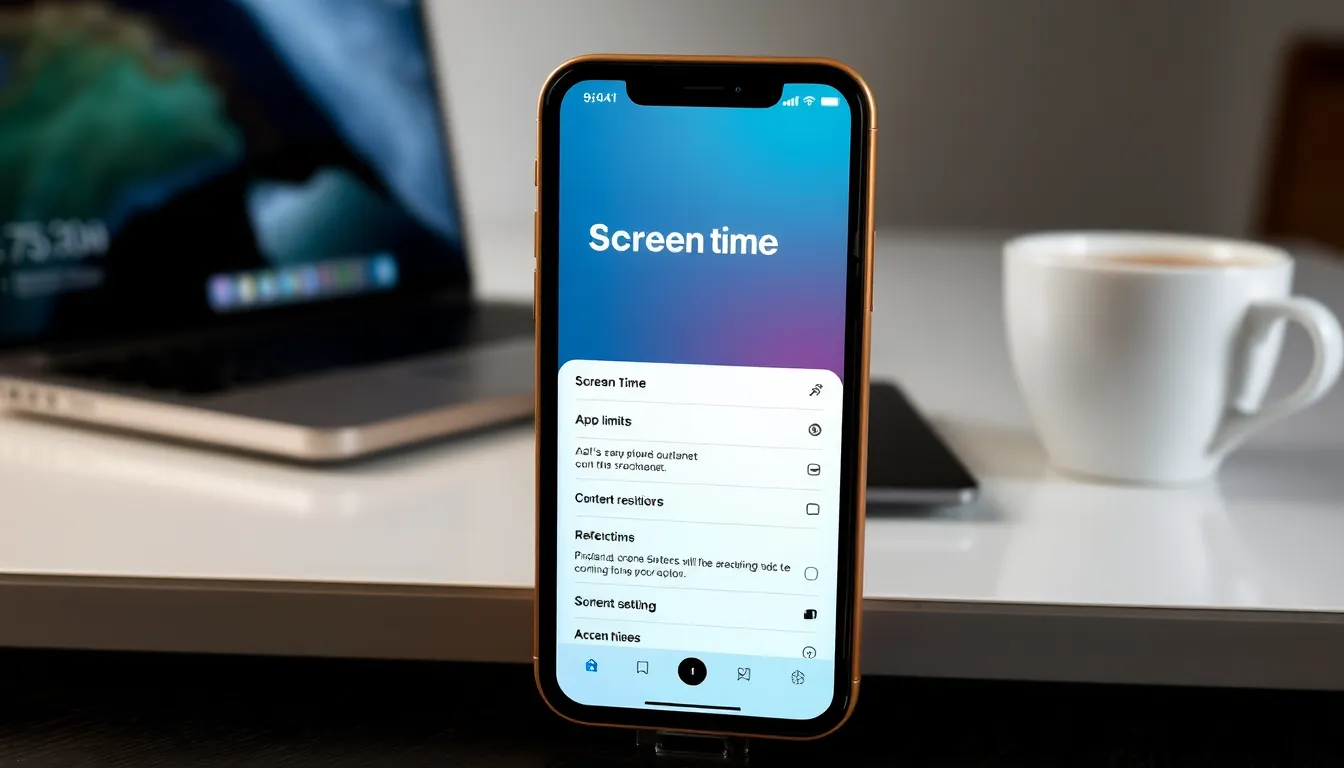
Blocking YouTube on Safari helps maintain focus and enhance productivity. Several methods exist for managing access easily.
Using Screen Time Settings
Screen Time settings on iPhones offer a straightforward way to limit access. Users can access these settings through the iPhone’s main menu. Under Screen Time, select “App Limits.” Then, choose “Add Limit” and find “Social Networking” or search for YouTube specifically. After identifying the app, users can set a time limit, which effectively restricts usage. Once the set time expires, it prevents further access for the day. Users can also opt to block the app entirely by selecting “Don’t Allow” instead of setting a limit.
Using Restrictions
Restrictions provide another method for blocking YouTube. Begin by navigating to Settings and selecting “Screen Time.” From there, enable “Content & Privacy Restrictions.” After that, tap on “Content Restrictions” and navigate to “Web Content.” Choosing “Limit Adult Websites” can help filter out YouTube. Users can also manually add the YouTube URL to the “Never Allow” section. This ensures that any attempt to access YouTube via Safari gets blocked, effectively enhancing control over browsing behavior.
Third-Party Apps For Blocking YouTube
Blocking YouTube on Safari can also be achieved through third-party apps. These applications provide additional features and control options for managing online content.
Popular Apps For iPhone
NetNanny offers comprehensive web filtering capabilities. It enables parents to control app usage and monitor online activity effectively. Freedom blocks distracting websites and apps across various platforms. Users can create custom block lists, including YouTube. Qustodio provides robust parental controls and usage reports. This app helps track screen time and filter inappropriate material. BlockSite is another option, allowing users to block specific websites. Its simple interface makes it easy to add YouTube to blocked sites.
How To Set Up These Apps
Setting up these apps involves a few straightforward steps. Install the chosen app from the App Store first. Next, create an account or log in if an account already exists. After that, follow the app-specific prompts to configure settings. Users should look for options to block websites or restrict app usage directly within the app interface. Lastly, save the changes to ensure the configurations take effect. By following these simple instructions, individuals will effectively limit access to YouTube on their devices.
Alternative Solutions
Blocking YouTube can extend beyond Safari settings, offering additional methods tailored to specific needs.
Using Router Settings
Adjusting router settings provides a flexible approach to block YouTube network-wide. Access the router’s control panel by entering its IP address in a web browser. Look for parental controls or access restrictions. Users can specify sites to block, including YouTube, preventing any device on the network from accessing it. This solution ensures all connected devices, including computers and tablets, adhere to the same restrictions. After saving the changes, users should restart the router for the settings to take effect.
DNS Filtering
DNS filtering presents another option to restrict access to YouTube. Utilizing a filtered DNS service, such as OpenDNS or CleanBrowsing, users can guide internet activity. By configuring the iPhone’s DNS settings to a chosen service, unwanted sites become automatically blocked. Such services often allow for custom filtering, letting users block YouTube specifically while maintaining access to other sites. With this setup, the implementation remains seamless across all devices connected to the network, enhancing overall online safety.
Blocking YouTube on Safari for iPhone offers significant advantages for both productivity and parental control. By taking proactive steps to limit access to distracting content users can create a more focused online environment. This not only helps individuals stay on task but also protects children from excessive screen time and inappropriate material.
Utilizing built-in features like Screen Time or exploring third-party apps provides flexible solutions tailored to specific needs. Whether for personal improvement or safeguarding family values the strategies discussed empower users to manage their digital experiences effectively. Embracing these methods fosters healthier online habits and enhances overall well-being.